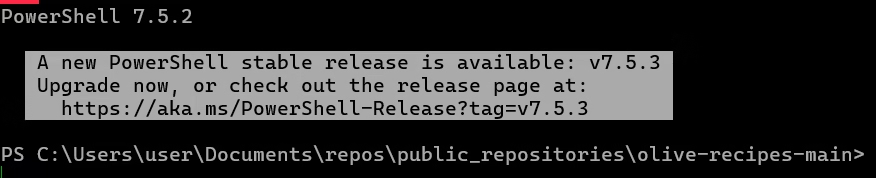
You can update PowerShell to the latest version in several ways directly from the command line. Below are the most common and convenient methods.
Update with Winget
The Windows Package Manager, winget, is the modern and recommended way to install and update software on Windows, including PowerShell.
Check available PowerShell versions:
Open PowerShell and run the following command to see all available versions for installation:
winget search Microsoft.PowerShellInstall the latest stable version:
To install the latest stable version of PowerShell, execute:
winget install --id Microsoft.PowerShell --source wingetThis command will find and install the latest available version of PowerShell.
Update with a one-line command
You can use a command that downloads and runs the official PowerShell installation script from Microsoft.
For simplicity and speed, enter the following command in PowerShell:
powershell iex "& { $(irm https://aka.ms/install-powershell.ps1) } -UseMSI"This command uses Invoke-RestMethod (alias irm) to download the script and Invoke-Expression (alias iex) to execute it. The -UseMSI parameter specifies the use of the MSI installer.
Check PowerShell version
After the installation process is complete, you can check the current version of PowerShell to make sure the update was successful.
- Open a new PowerShell window.
- Run the following command:
powershell $PSVersionTable
In the output, you will see the new version in thePSVersionline.
It is worth noting that Windows PowerShell (versions up to 5.1) and PowerShell Core (versions 6 and newer) are different platforms and can be installed in parallel. The executable for modern versions of PowerShell is called pwsh.exe.