
Microsoft Olive (an acronym for ONNX Live) is an open-source framework from Microsoft designed for the optimization of artificial intelligence models. Its primary goal is to simplify and accelerate the process of preparing machine learning models for real-world deployment, regardless of the target hardware—whether it’s a CPU, a powerful GPU, or a specialized NPU (Neural Processing Unit).
In simple terms, Olive takes a source model (e.g., from PyTorch or Hugging Face) and converts it into a high-performance version in the ONNX format, which is tuned for a specific device.
The process can be viewed as an optimization pipeline: a model is provided as input, Olive analyzes it along with the target hardware, applies a suitable sequence of optimizations, and produces a compact, fast, and deployment-ready artifact.
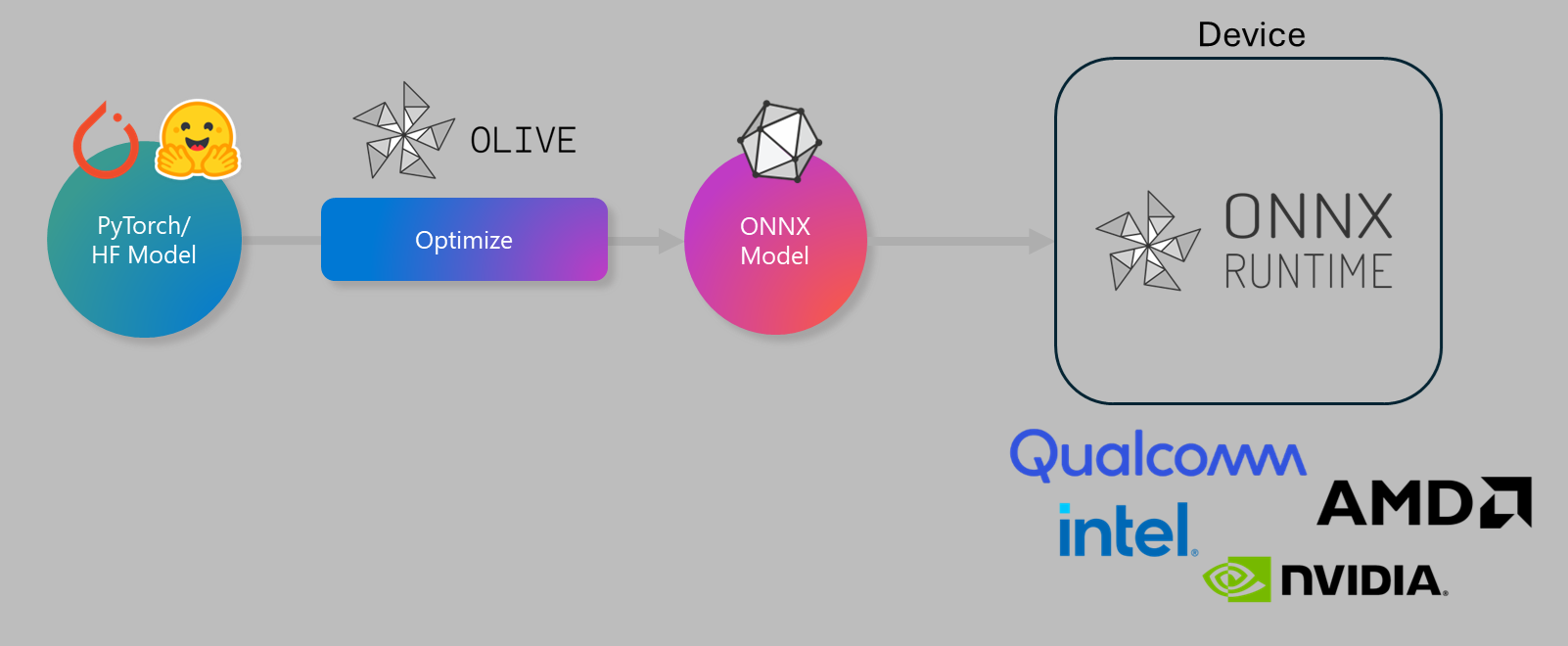
How Olive Works: The Concept of “Passes”
At its core, Olive operates using a structured workflow composed of a sequence of individual optimization tasks called “passes”. Each pass is responsible for a specific model improvement.
Key types of passes include:
- Conversion (OnnxConversion): Transforms the model from its original framework (e.g., PyTorch) into the universal ONNX format.
- Graph Optimization: Analyzes and restructures the model’s computational graph to eliminate redundant operations and fuse multiple steps into one.
- Quantization: Reduces the precision of calculations (e.g., from 32-bit to 8-bit integers), which significantly decreases the model’s size and speeds up its execution, especially on CPUs and NPUs.
- Pruning & Finetuning: Removes unnecessary connections in the neural network and performs additional “fine-tuning” to preserve accuracy after optimization.
Olive can automatically find the best combination of these passes and their parameters to achieve a desirable balance between model accuracy and inference speed.
Key Advantages of Using Olive
- Reduces Manual Effort: Automates the selection of complex optimization techniques, saving time and effort.
- High Performance: Creates models that make efficient use of the target hardware resources from Intel, AMD, Nvidia, Qualcomm, and others.
- Simple Interface: A convenient command-line interface (CLI) allows for performing standard optimization tasks with a single command.
- Flexibility and Control: For complex scenarios, it supports detailed configuration via YAML/JSON files.
- Ecosystem Integration: Works seamlessly with ONNX Runtime, a high-performance engine for running models.
- Support for Modern Architectures: Includes pre-built recipes for optimizing the latest models, including Large Language Models (LLMs).
Practical Guide: Installation and Usage
1. Installation
It is highly recommended to install Olive in a Python virtual environment to avoid dependency conflicts.
# Create and activate a virtual environment
python -m venv olive-env
source olive-env/bin/activate  # For Windows: olive-env\Scripts\activate

# Install the base Olive package and dependencies for PyTorch
pip install microsoft-olive[pytorch]

# To work with models from Hugging Face, the transformers library is also needed
pip install transformers

# For automatic LLM optimization, as in the example below
pip install microsoft-olive[auto-opt] transformers onnxruntime-genai
2. Quick Start: LLM Optimization via the Command Line
In this example, we will take the modern language model Qwen/Qwen2.5-0.5B-Instruct from the Hugging Face repository and apply 4-bit quantization to it.
olive optimize \
    --model_name_or_path Qwen/Qwen2.5-0.5B-Instruct \
    --precision int4 \
    --output_path models/qwen
Tip for PowerShell users: The line continuation characters are different. Use the following command:
olive optimize `
    --model_name_or_path Qwen/Qwen2.5-0.5B-Instruct `
    --precision int4 `
    --output_path models/qwen
What is happening here?
--model_name_or_path: Olive automatically downloads the specified model from Hugging Face.--precision int4: This is an instruction to apply 4-bit quantization.--output_path: The directory for saving the optimized model.
After execution, Olive will download the model, convert it to ONNX, apply quantization, and save the result.
3. Advanced Method: Optimization via JSON Configuration
For complex tasks requiring more control, using a configuration file is the best approach. This makes the process more transparent and reproducible.
Step 1: Create a config.json file
Let’s optimize the distilbert model for text classification by applying ONNX conversion and dynamic quantization.
{
    "input_model": {
        "type": "PyTorchModel",
        "config": {
            "model_name": "distilbert-base-uncased-finetuned-sst-2-english",
            "task": "text-classification",
            "io_config": {
                "input_names": ["input_ids", "attention_mask"],
                "output_names": ["logits"],
                "dynamic_axes": {
                    "input_ids": { "0": "batch_size", "1": "sequence_length" },
                    "attention_mask": { "0": "batch_size", "1": "sequence_length" },
                    "logits": { "0": "batch_size" }
                }
            }
        }
    },
    "passes": {
        "conversion": {
            "type": "OnnxConversion"
        },
        "quantization": {
            "type": "OnnxQuantization",
            "config": {
                "quant_mode": "dynamic"
            }
        }
    },
    "engine": {
        "output_dir": "optimized_distilbert"
    }
}
Step 2: Run the optimization with this file
The command in the terminal becomes very simple:
olive optimize --config config.jsonThis method gives you full control over each step: you can specify precise parameters for each “pass,” define the model’s inputs and outputs (io_config), and easily manage the entire process.
What’s Next: Running the Model with ONNX Runtime
ONNX Runtime (ORT) is a fast, cross-platform engine for the inference (execution) of models optimized with Olive. It allows you to embed AI models into your applications in Python, C++, C#, Java, and other languages, performing inference directly on the device.
An example of a chat application for LLM models optimized with Olive is available in the model-chat.py file in the onnxruntime-genai repository on GitHub.