Page navigation is an important part of any WordPress blog or news site. One of the most popular tools for convenient pagination is the WP-PageNavi plugin. It allows you to replace the standard “Previous / Next” links with more flexible and beautiful pagination.
One of the key features is the ability to customize link text using variables that automatically substitute the current page number, total number of pages, and other information.
In this article, we will analyze all available variables, examples of their use, and show with screenshots where to insert them.
Where to find WP-PageNavi settings
After installing the plugin, go to the WordPress admin panel:
Settings → PageNavi
There you will see a menu for customizing link text (example in the screenshot below):
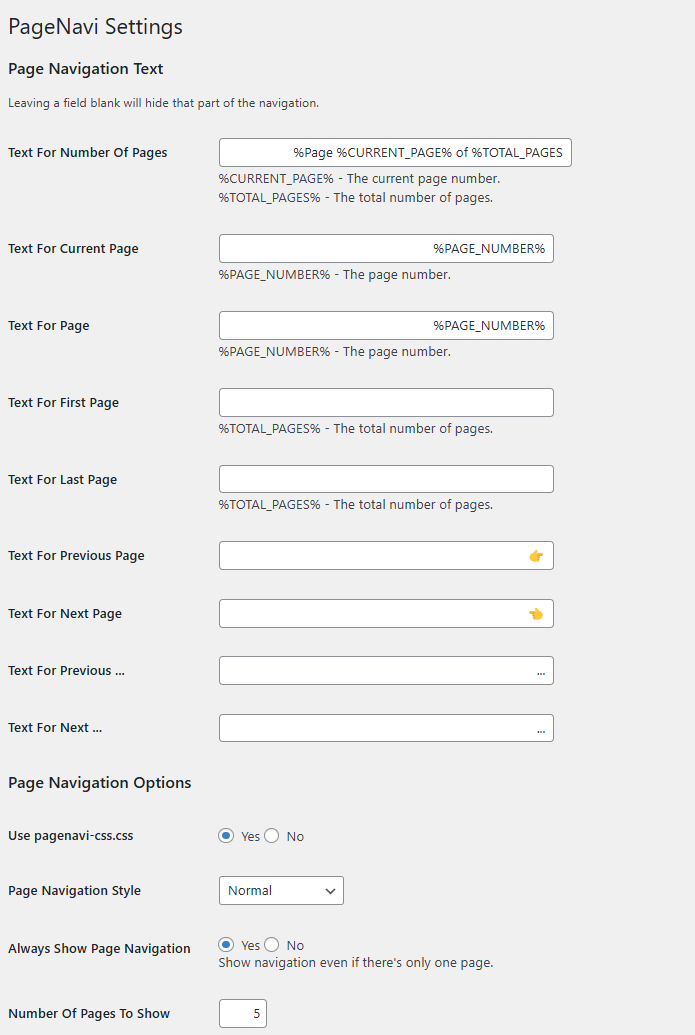
👉 In each field, you can use variables to dynamically display the current page, total number of pages, and other navigation elements.
Available WP-PageNavi Variables
The plugin provides a set of placeholders (template variables) that can be used in the settings:
🔹 %CURRENT_PAGE%
Displays the current page number.
Example:
You are on page %CURRENT_PAGE%
👉 If you are on page 3, the result will be:
You are on page 3
🔹 %TOTAL_PAGES%
Shows the total number of pages.
Example:
Total pages: %TOTAL_PAGES%
👉 If there are 10 pages in total, the output will be:
Total pages: 10
🔹 %PAGE_NUMBER%
Used to display the number of each page in the list.
Example:
Page %PAGE_NUMBER%
👉 In the navigation, links will appear:
Page 1 | Page 2 | Page 3 | ...
WP-PageNavi Variables Table
| Variable | Description | Setting Example | Result (if 3rd page out of 10) |
|---|---|---|---|
| %CURRENT_PAGE% | Current page number | You are currently on page %CURRENT_PAGE% | You are currently on page 3 |
| %TOTAL_PAGES% | Total number of pages | Total pages: %TOTAL_PAGES% | Total pages: 10 |
| %PAGE_NUMBER% | Number of each page in the list | Page %PAGE_NUMBER% | Page 1 | Page 2 | Page 3 … |
| 1 (static) | First page (no variable) | First or Page 1 | First |
| %TOTAL_PAGES% | Last page | Page %TOTAL_PAGES% | Page 10 |
| ← / → / … | Symbols for arrows and abbreviations | ← Back, Forward →, … | ← Back | 1 | 2 | 3 | … | 10 | Forward → |
Example of full configuration
In the screenshot above, you can fill in the fields as follows:
- Text For Number Of Pages:
Page %CURRENT_PAGE% of %TOTAL_PAGES% - Text For Current Page:
%PAGE_NUMBER% - Text For Page:
%PAGE_NUMBER% - Text For First Page:
First - Text For Last Page:
Page %TOTAL_PAGES% - Text For Previous Page:
← Back - Text For Next Page:
Forward → - Text For Previous …:
… - Text For Next …:
…
👉 As a result, visitors will see approximately the following navigation:
← Back | First | 1 | 2 | 3 | … | Page 10 | Forward →
Summary
WP-PageNavi variables are simple but provide flexibility in navigation settings:
%CURRENT_PAGE%— current page%TOTAL_PAGES%— total pages%PAGE_NUMBER%— specific page number
For the first page, use 1, and for the last page, use %TOTAL_PAGES%.
Thanks to these settings, you can make website navigation more understandable and convenient for visitors.